
Articles
How to Migrate from Excel to Business Management Software: A Complete Guide
Quick Answer: Why Excel Is Not Enough to Run a Business
Excel is excellent for calculations and periodic reporting, but it is not built to run a growing business day-to-day. Excel does not keep data live, multiple users struggle to work on the same file simultaneously, no workflow can be enforced, and its reports are manually refreshed. Once a business grows past five people, Excel stops being the single source of truth — it becomes the source of the chaos.
Table of Contents
- Why businesses start with Excel
- Warning signs: When Excel no longer works
- The hidden costs of Excel you do not see
- What to look for in an Excel replacement
- Excel vs. all-in-one business management software
- Step-by-step migration from Excel to a unified software
- Common migration mistakes
- How to choose the right software
- How this connects to Taskora
- Frequently asked questions
- Conclusion
Why Businesses Start with Excel
Excel is familiar, cheap, and flexible. Anyone who has used a computer can work with Excel. That is why more than 80% of small and medium businesses start with an Excel file to track sales or a daily to-do list. The decision makes sense early on: a tool that needs no training, no monthly subscription, and adapts to any shape you want.
But as the business grows, Excel turns from a helpful tool into the main bottleneck. This usually happens when the team reaches five people or when active customers hit fifty.
Warning Signs: When Excel No Longer Works
If you see any of these signs in your business, it is time to migrate:
- Two or more versions of the same Excel file exist and no one knows which is current
- One person updates the file and everyone else waits
- Weekly or monthly reports take more than an hour to produce
- Task reminders are manual
- No one can say which stage each customer is in the sales process
- One employee holds all the data and no one else can access it when they are out
- Repeated mistakes in data (e.g., the same customer is entered twice)
- The leader cannot see the state of the organization at a glance
The Hidden Costs of Excel You Do Not See
Excel is not "free." Its hidden costs include:
- Time spent entering duplicate data across multiple files
- Time spent reconciling different versions
- Manager time spent generating reports by manually combining files
- Human errors that lead to lost customers or delayed projects
- Inability to scale (Excel completely breaks down at 20 people)
- Training cost for new users on your custom Excel logic (only you understand it)
An informal study suggests that mid-sized businesses running on Excel spend 8 to 12 hours per week just maintaining and reporting from Excel files. That is time that could go to sales, customer service, or business growth.
What to Look for in an Excel Replacement
A good Excel replacement should have at minimum these features:
- Centralized data in a single source of truth (not scattered files)
- Concurrent multi-user access without locking
- Automatic, up-to-date reporting without manual work
- Enforceable workflows (e.g., when a lead reaches the "Demo" stage, a task is auto-created)
- Role-Based Access Control (each user only sees their part)
- Change history for audit
- Native integration between modules (e.g., invoices linked to customers)
- Mobile access for traveling team members
Excel vs. All-in-One Business Management Software
The table below provides a practical comparison:
| Metric | Excel | All-in-One Software |
|---|---|---|
| Concurrent users | Limited | Unlimited (with license) |
| Data refresh | Manual | Live and automatic |
| Reporting | Manual, slow | Automatic, real-time |
| Workflow enforcement | None | Enforceable |
| Access control | File-level | Field-level |
| Change history | Limited | Complete |
| Automatic reminders | None | Yes |
| New user ramp-up | High (custom logic) | Medium (standard UI) |
| Scalability | Up to 5–10 people | Up to hundreds |
| Hidden cost | High | Low |
Step-by-Step Migration from Excel to a Unified Software
Migration is a process, not a one-day event. Follow these steps:
Step 1: Inventory Your Current Data
Start by collecting all current Excel files and identifying the structure of each. Which fields are duplicated? Which data exists in multiple files? Which data is stale and should be removed? The output of this step is a data map.
Step 2: Define the Data Structure in the New Software
The new software's data structure should match your business process, not your Excel structure. For example, if your Excel had a "Status" column with ten different values, in the new software convert these statuses into stages of a workflow.
Step 3: Clean and Standardize Your Data
Before importing into the new software, clean the data: remove duplicates, standardize date formats (all in one format), standardize phone numbers (with country code), and remove incomplete records.
Step 4: Import Data into the New Software
Most unified software supports import from Excel or CSV. Import data in small batches and verify accuracy after each batch. Import records of different entities (customers, leads, projects, tasks) in order so dependencies are preserved.
Step 5: Train the Team and Migrate Gradually
Instead of a one-shot migration, do it gradually. First move a small team (e.g., sales) onto the new software and run Excel and the software in parallel for two weeks. Once you are confident, move the rest of the team.
Step 6: Stabilize and Optimize
After migration, collect team feedback during the first month and identify processes that have not translated well to the new software, and fix them. Do not keep Excel as an unofficial data source; once migrated, archive Excel.
Common Migration Mistakes
- One-shot migration without a parallel period — the team gets confused
- Deleting Excel before verifying data accuracy in the new software
- Importing dirty data — the Excel problem moves to the new software
- Insufficient team training — using the new software as if it were Excel
- Not defining workflows in the new software — it becomes a data warehouse
- Resisting process change — expecting the software to behave exactly like Excel
How to Choose the Right Software
When choosing an Excel replacement, consider these criteria:
- Native integration between modules (CRM + project + tasks + finance)
- Easy Excel import
- Role-Based Access Control
- Customizable workflows for your processes
- Automatic reporting and management dashboard
- Mobile app for on-the-go access
- Pricing aligned with user count and growth
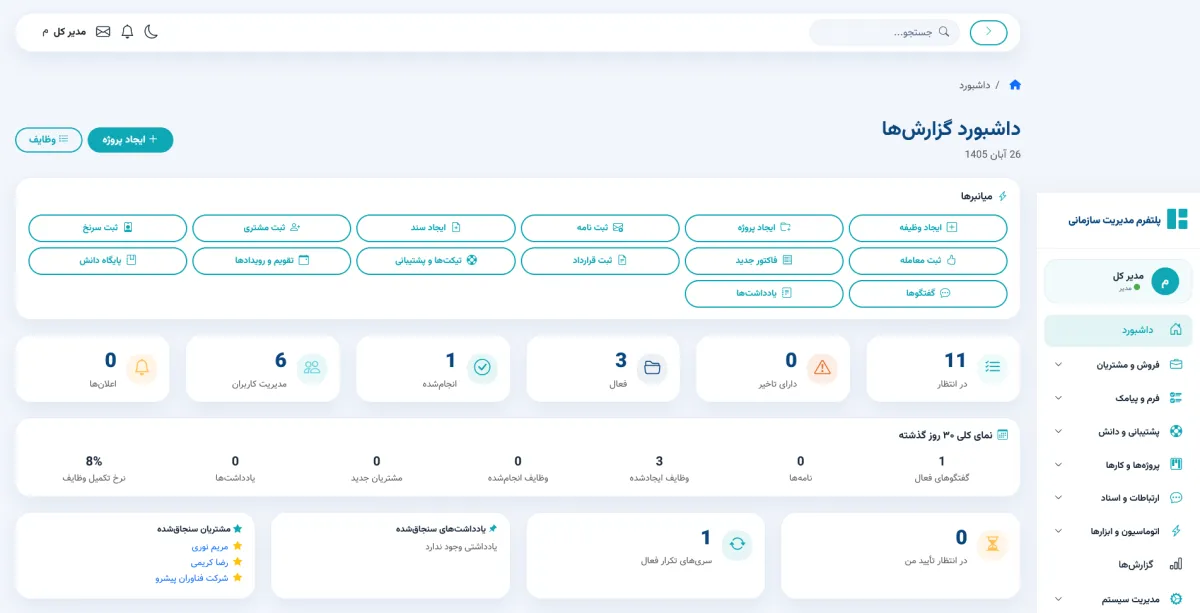
One option that covers these criteria is Taskora — an all-in-one business management software that brings CRM, projects, tasks, team collaboration, documents, finance, and workflow automation into one centralized platform. You can learn more on the business management software product page.
How This Connects to Taskora
Taskora is built specifically for businesses migrating from Excel to a unified software. Its Excel import tool simplifies the process and its integrated modules (CRM, projects, tasks, finance, automation) replace those scattered Excel files. If you are evaluating Excel alternatives, you can review the capabilities on the business management software product page and contact the support team. For businesses that use several separate tools and want to consolidate, the Taskora unified platform is an option worth evaluating.
Frequently Asked Questions
Can I automatically transfer my Excel data to the new software?
Most unified software, including Taskora, supports import from Excel or CSV. For complex or high-volume data, the software support team can help.
How long does migration take?
For 5–20 person businesses, migration typically takes one to two weeks, including data import, training, and a parallel period. Larger businesses may need one to three months.
Will my team resist the migration?
Yes, this is normal. Reduce resistance with adequate training, gradual migration, and by involving the team in the decision process. Show the team which daily problems the new software solves.
Will Excel become completely obsolete?
No. Excel is still useful for periodic data analysis, ad-hoc reports, and complex calculations. Excel should not be the primary data source of the business, but it stays as an analytical tool alongside the unified software.
What is the cost of migrating from Excel?
Migration cost includes the new software cost + data cleaning time + training time. Long term, this cost is less than the cost of keeping Excel (with its hidden costs).
Conclusion
Migrating from Excel to an all-in-one business management software is one of the most important operational decisions for a growing business. Excel works well to start, but at scale it becomes a bottleneck. A successful migration requires a data inventory, cleanup, choosing the right software, and gradual team training. If you are at the point where Excel no longer works, the next step is evaluating a unified platform like Taskora.
If you are ready to evaluate an Excel alternative, visit the business management software page to explore Taskora's capabilities and request a demo. The Taskora sales team will support you through evaluation and migration.
Have a custom project?
Talk to Mazweb to review your needs and find the right path.
Start the conversation


Comments 0
No comments yet. Be the first to comment.
Leave a comment